Welcome message, photo, or video
Greet your guests with a written welcome, a still photo, or a short video at the top of your gallery — with optional captions and autoplay.
~4 min read
The first thing guests see when they land on your gallery is the host's welcome. PixVenu gives you three ways to personalize that space, layered on top of each other if you want.
Welcome message. A short text block above the photo grid. Open your gallery's detail page in the host dashboard, find the Welcome card, and type something. One or two sentences works best — a quick "thank you for being here, share your favorite moments tonight" goes a long way. The textarea accepts a small subset of Markdown: **bold**, *italic*, and inline links written as [label](https://...). The guest view renders these safely — no raw HTML and no script tags pass through.
If you don't know what to write, the textarea offers two starter templates ("warm + welcoming" and "short + sweet") tailored to the event vertical you picked when you created the gallery — weddings, engagements, parties, kids' parties, business events, memorials. The template picker only appears while the field is empty; once you start typing, it gets out of your way so you can't accidentally overwrite your draft.
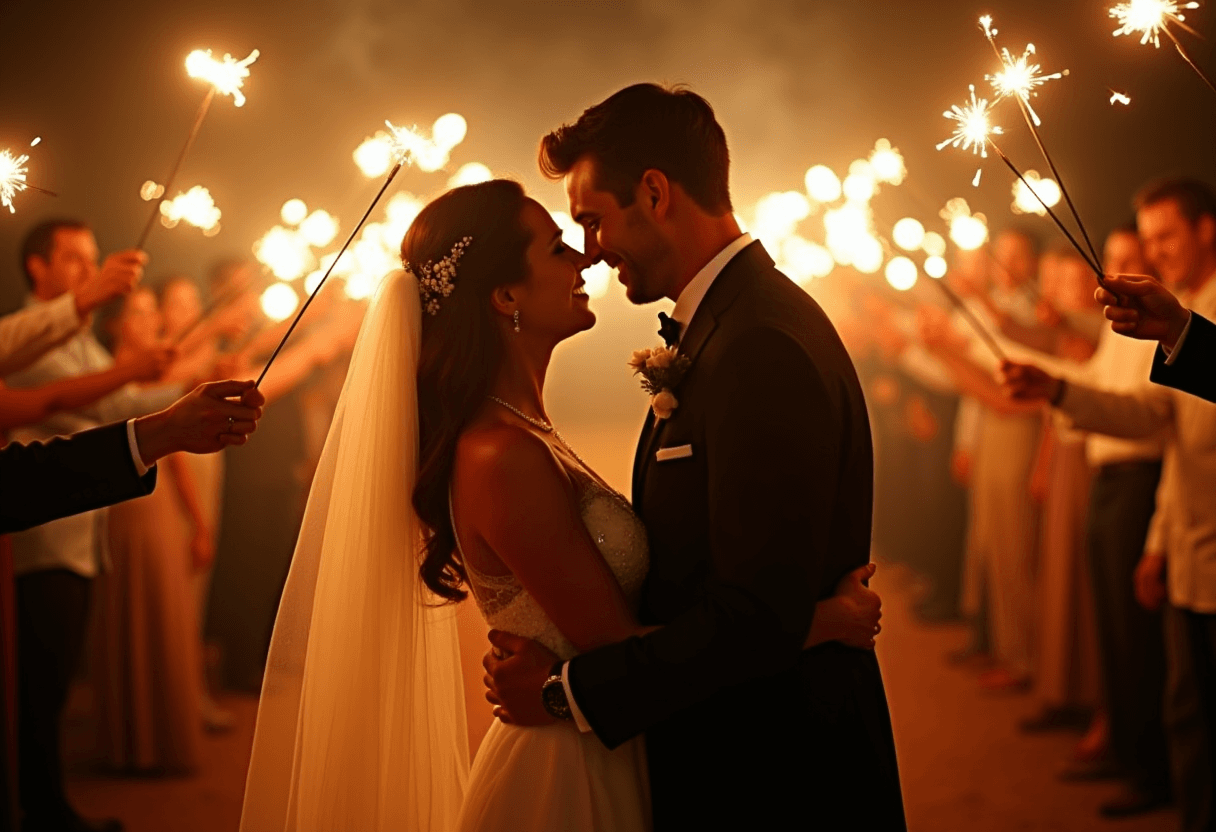
Welcome photo. Below the message you can upload a still image — JPG, PNG, WebP, or GIF, up to 100 MB. It renders large above the photo grid. A wedding portrait, the event logo, an event poster, or a quick snap of the venue all work well here. Animated GIFs play in the guest view, so a short looping clip is also an option without needing a full video.
The welcome video needs a paid plan. The welcome message and the photo are available on every tier, including free — but the welcome video requires Essential or higher. Upgrade to add a welcome video; see Free vs paid galleries.
Welcome video. Instead of (or in addition to — they share a slot) a still photo, you can upload a short video. Supported types are MP4, WebM, and MOV (QuickTime). Same 100 MB cap as the photo upload. Sixty seconds or less keeps file sizes reasonable and respects the guest's data plan. The video has standard playback controls and a poster frame extracted from the first frame so the guest sees an immediate visual instead of a black box.
After uploading a video, you'll see an Autoplay toggle next to the uploader. Two modes:
- Tap to play (default) — the guest sees the poster frame and pushes play themselves. Calmer arrival.
- Plays on arrival — the video starts immediately, muted. Guests can unmute via the player controls. Browsers reject autoplay with sound unless the guest interacts first, so muted-autoplay is the only path; PixVenu pairs the two automatically.
Subtitle track. If you've uploaded a welcome video, you can also upload a .vtt (WebVTT) subtitle file with a language tag like en or fr-CA. Captions are useful for guests who can't turn the volume up (kids' parties, projector-only setups, accessibility needs), guests who don't speak the language the video is in, or anyone who lands on a muted-autoplay video and wants to follow along. Most modern video editors export WebVTT directly; if your editor doesn't, free tools like Otter, Aegisub, or Subtitle Edit produce the format.
Where this all lives. Editing happens inline on the gallery's host detail page — there's no separate "Edit gallery" modal. Changes save immediately when you hit Save, and any guest who refreshes their gallery tab sees the new content. If you want to replace a welcome video without losing the autoplay setting, just upload a new file — the toggle setting carries through.
Mid-event editing is fine. You can change the welcome message, swap the photo or video, toggle autoplay, or add captions at any time before or during your event. Guests who already have the gallery open won't see the change until they reload, which is the usual web behavior.
Still stuck?
Drop us a line and we'll dig in personally — usually within a business day.