The most common question we hear from hosts is "what does it take to set this up?" The honest answer is two minutes — and most of that is picking a theme. Here's the actual flow.
1. Pick the event type
PixVenu's pricing and feature defaults shift slightly by event type — weddings, engagements, parties, kids' parties, business events, memorials. Pick the one that matches yours; it sets the right defaults for moderation, gallery lifetime, and the welcome copy your guests will see.
2. Name the event and set the date
The event title is what guests see at the top of the gallery — "Alex & Riley — Riverside Estate," "Margaret's 70th." The date controls when the gallery activates for guests and when its hosting window starts counting down. You can change both later.
3. Choose a theme
Four named presets reskin the guest view: Classic for formal nights, Warm for sunset receptions, Cool for garden weddings and outdoor parties, Mono for editorial and corporate. The theme only affects the guest-facing page — your host dashboard stays consistent regardless.
4. Decide on moderation
If you want every photo to wait on your approval before it appears in the gallery, switch moderation on. If you want the gallery to fill live as guests upload, leave it off. You can flip the toggle at any time, even mid-event.
5. Print the QR code
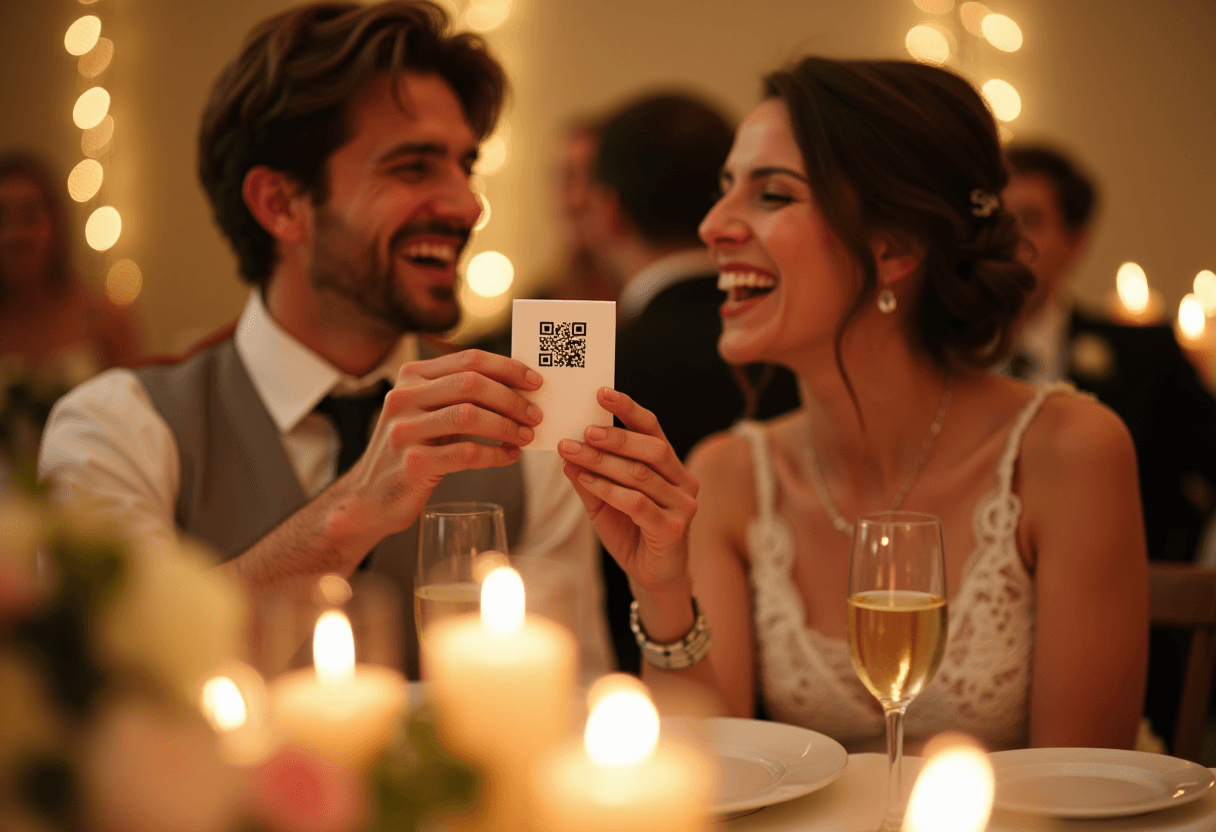
Download your QR PDF, stick it on a welcome sign, a place card, or a take-home favour. That's the entire setup — what's left is the night.
The shortest path from "we just booked PixVenu" to "the QR code is on the welcome sign at the venue" is genuinely a couple of minutes. The rest is the part you were going to do anyway.